
Add a widget
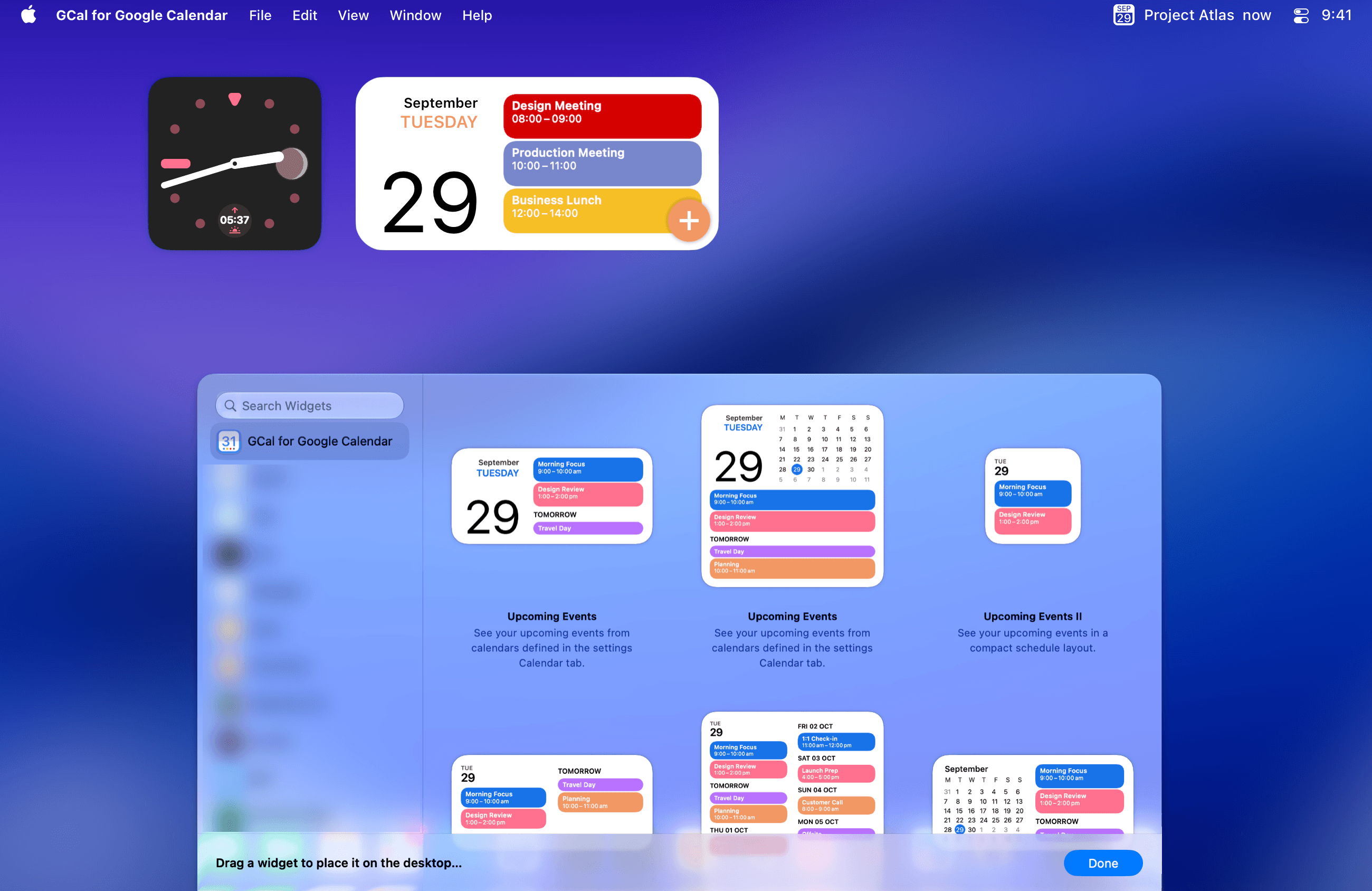
- On macOS 14 or later, Control-click the desktop and choose Edit Widgets. On macOS 13, open Notification Center by clicking the date and time, then choose Edit Widgets.
- Search the gallery for GCal. Choose a widget and an available size.
- Add it to Notification Center or, on supported macOS versions, drag it onto the desktop. Finish editing the widget gallery.
See Apple’s widget instructions for the controls on your version of macOS.
Choose what the widget shows
- Control-click the widget and choose its edit option, if one is available. Different layouts offer different controls.
- For agenda content, check the accounts and calendars selected in GCal Settings → Accounts and Calendar.
- Use an event widget to see upcoming events, or choose a date, calendar, or clock layout to suit your desktop.
Some layouts and interactions depend on your macOS version. A widget refresh is scheduled by macOS and may follow a change in the app after a delay.
If the widget is blank
Open GCal and check whether the same events appear in the menu bar. If they do not, fix the account or calendar selection first. If they do, follow Fix empty or outdated widgets.