
Open your calendar
- Download GCal from the Mac App Store, then open it from Applications. You need macOS 13 or later and an internet connection for Google Calendar.
- Complete the welcome screens and open Google Calendar. Sign in with the Google account you want to use in the main window.
- Use Google Calendar to create or edit an event as usual. Your Google account’s calendar permissions still apply.
Connect the menu-bar agenda
The main window and the native agenda are connected separately. The window displays Google Calendar; the menu bar, Dock, widgets, and notifications use the calendar sources you enable in GCal.
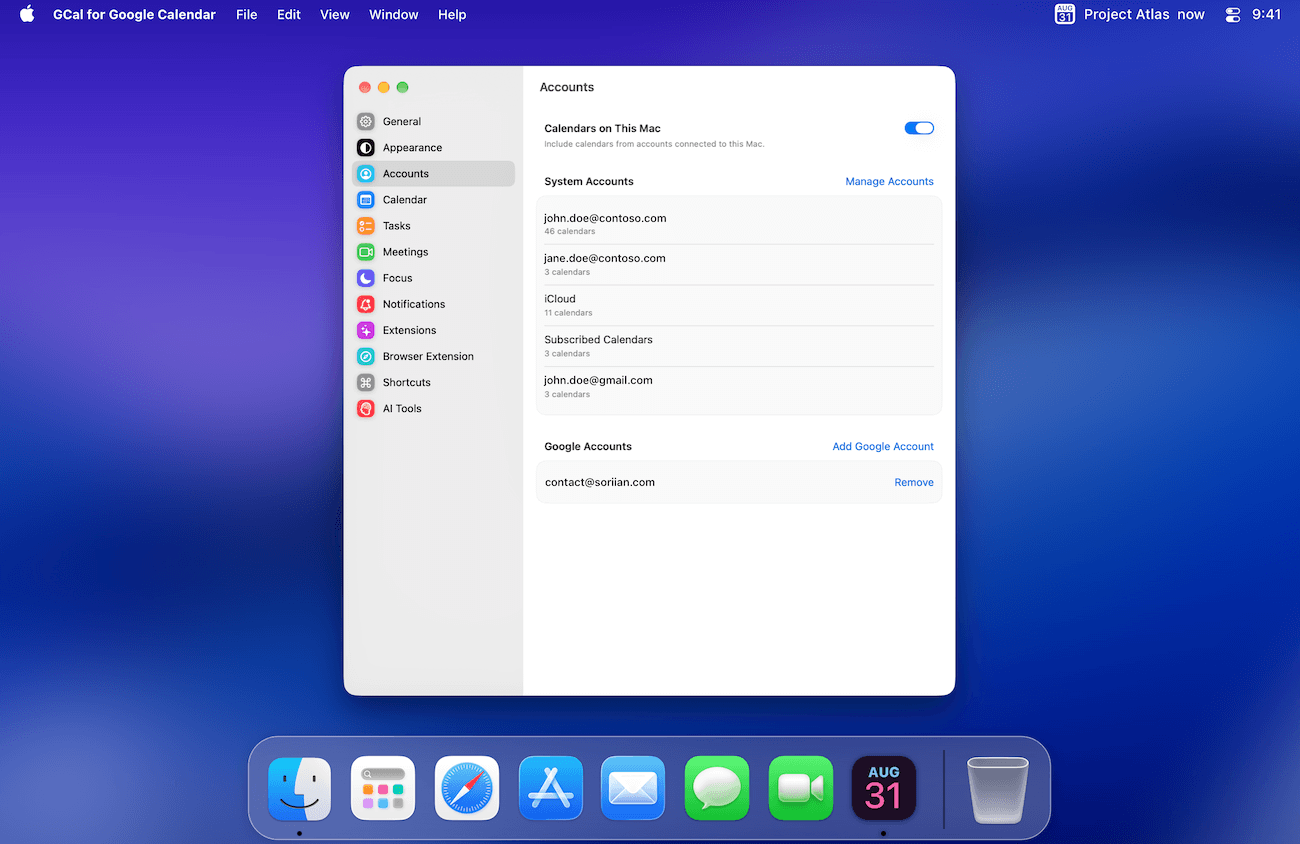
- Open GCal → Settings → Accounts. Choose Add Google Account and complete Google’s permission screen for Calendar and, if wanted, Tasks.
- To include calendars already connected to macOS, turn on Calendars on This Mac and allow calendar access when macOS asks.
- Open Settings → Calendar and select the calendars you want included. For Google Tasks, choose your lists under Settings → Tasks.
The native Google connection reads calendar and task data. It does not edit events through the Google API. Editing in the main Google Calendar window is a separate workflow.
Make it part of your day
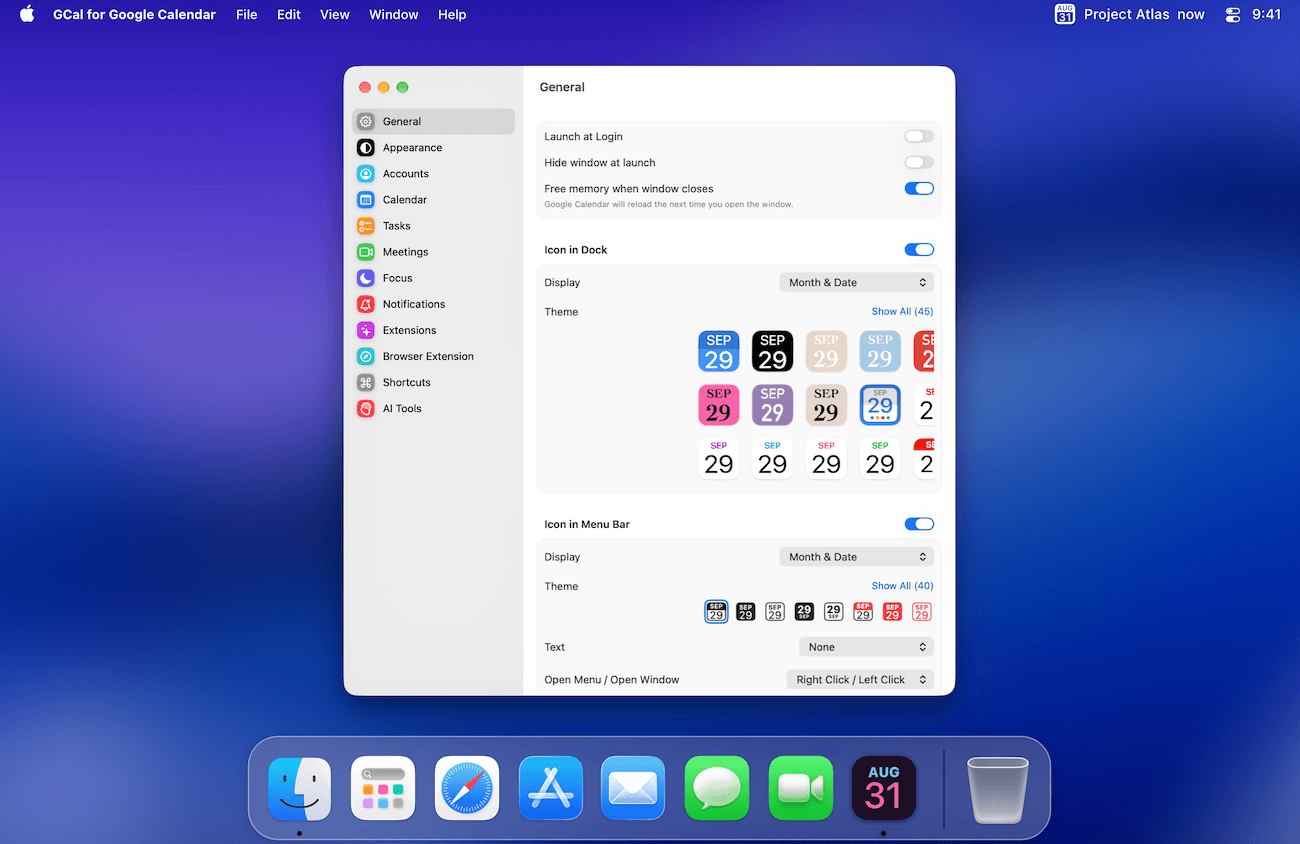
- In Settings → General, choose whether GCal appears in the Dock and menu bar.
- If you want GCal ready when you sign in to your Mac, enable Launch at Login.
- Add a widget or choose a calendar background when you are ready. You can return to Settings at any time.
You should now see your Google Calendar in the main window. After connecting the agenda, selected upcoming events should also appear in the menu bar. If they do not, start with Find missing calendars or events.